You can download specially dedicated application for such betters KEKA and use it for FOLDER protection purposes. Instruction can be found here: LINK
Recording on how to use it in practice: Screen Recording 2026-03-26 at 13.44.26.mp4
Or you can follow instruction below and proceed with protecting the folder on your MacBook.
--------------------------------------------------------------------------------------------------
Below is a clear instruction for Customer Support on how to protect a folder with a passcode using the terminal and zip encryption. You can find recording with the step by step instruction here: LINK
How to Protect a Folder with a Passcode (Mac)
This guide explains how to create a password-protected ZIP archive from a folder using the Terminal.
1. Open Finder
Open the Finder application on your computer.
2. Navigate to the relevant folder such as for examples: "Documents Folder" And create a new folder with documents you want to protect.
Example:
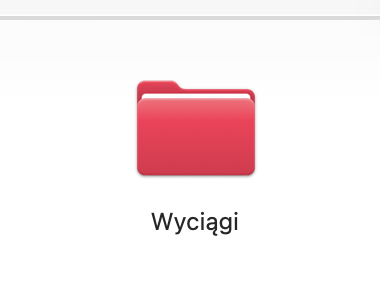
Next, double click on the folder, click on SERVICES and NEW TERMINAL AT FOLDER: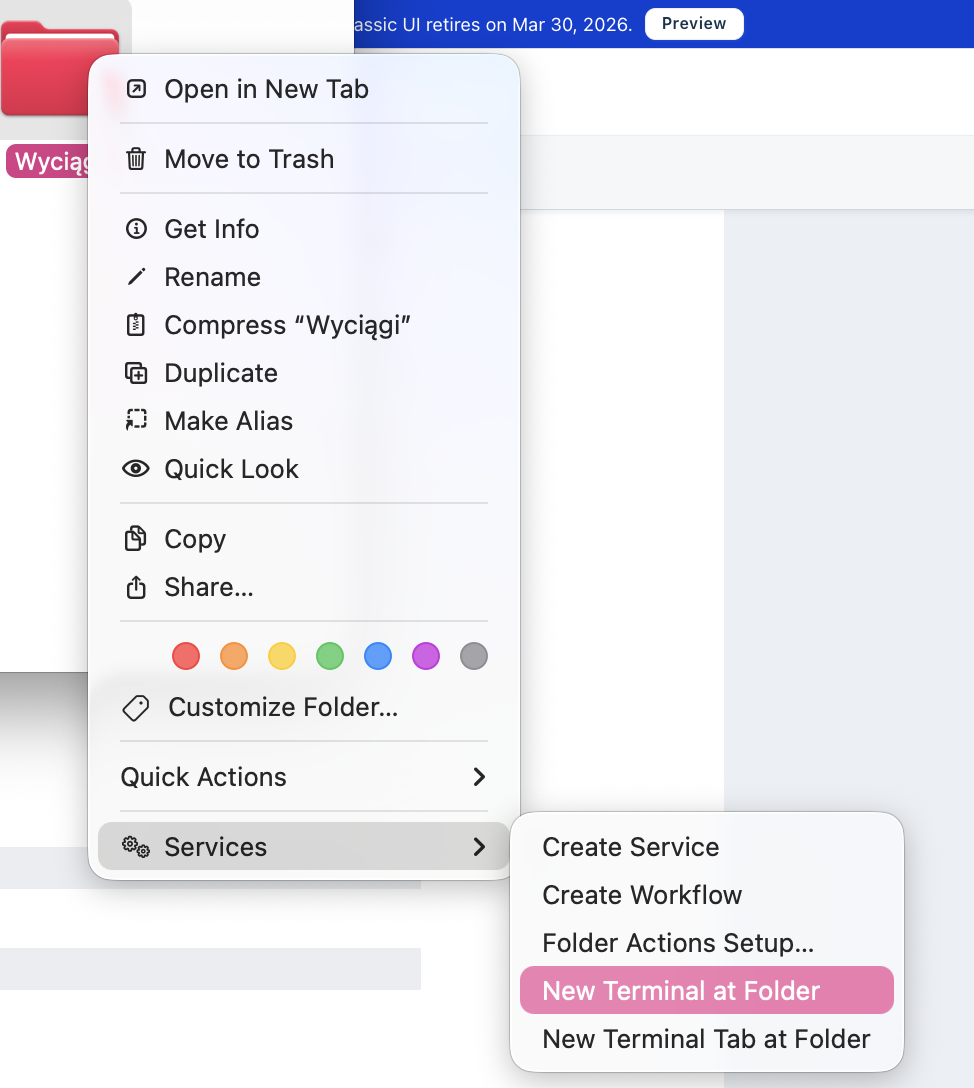
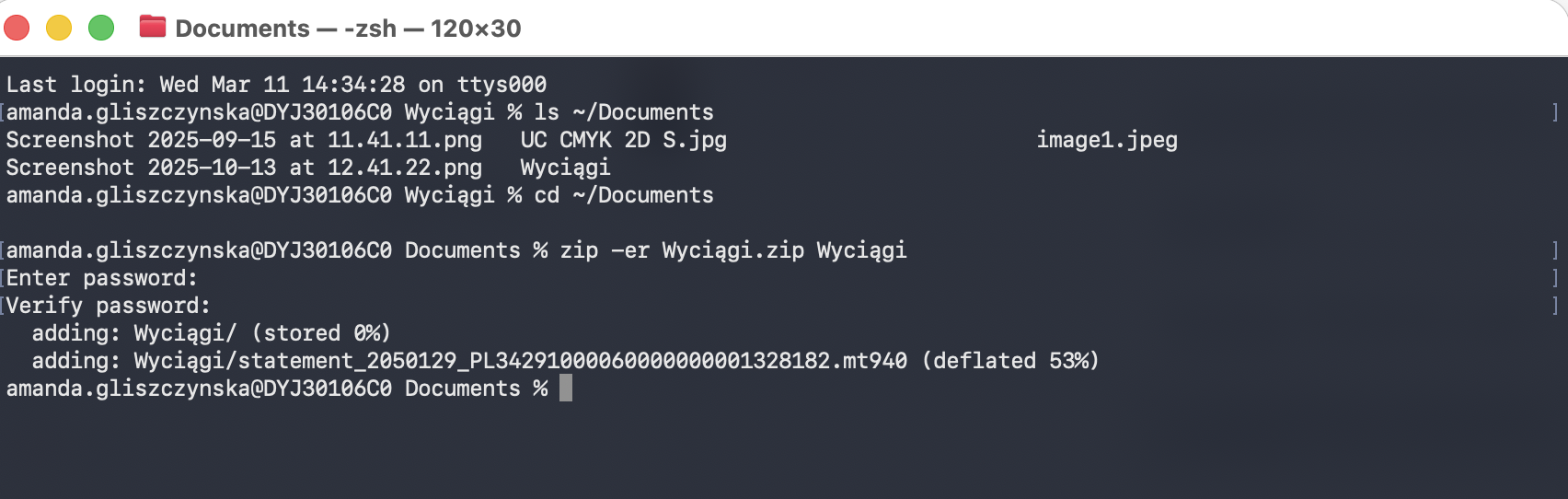
You will then see such window:
First, check the contents of your Documents directory by inserting text below and click on enter:
ls ~/Documents
Then move into the Documents folder by inserting text below and click on enter:
cd ~/Documents
3. Create a Password-Protected Archive
Run the following command but insert your newly created folder name instead of "Name of folder you created" :
zip -er "Name of folder you created" zip "Folder you created name"
What this command does
zip– creates a ZIP archive-e– enables password protection (encryption)-r– includes all files and subfolders inside the folderMySecretFolder.zip– the name of the archive that will be createdMySecretFolder– the folder you want to protect
4. Set the Password
After running the command, the terminal will prompt you to:
Enter a password - type and click enter
Confirm the password type and click enter
!The password will not be visible while typing.
5. Result
A new file will appear in the Documents folder:
"Name of folder you created".zip
This file is password protected, and the password will be required to open or extract it.
Was this article helpful?
That’s Great!
Thank you for your feedback
Sorry! We couldn't be helpful
Thank you for your feedback
Feedback sent
We appreciate your effort and will try to fix the article